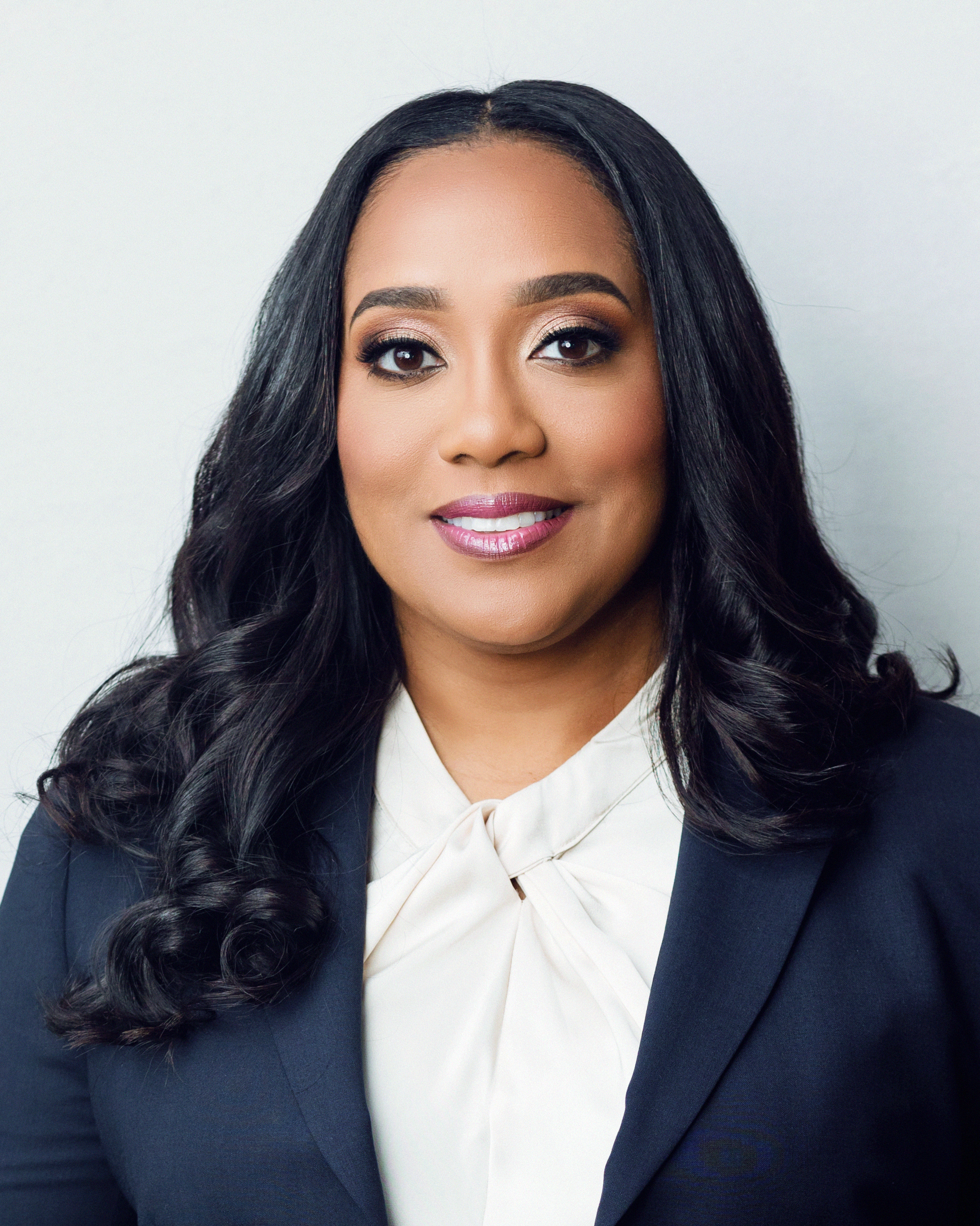
One of our own, Section Council Member, Craig Ball, has been named “Consultant of the Year” by Law Technology News.
Congratulations, Craig.

One of our own, Section Council Member, Craig Ball, has been named “Consultant of the Year” by Law Technology News.
Congratulations, Craig.

A case in Houston has sparked interesting legal questions surrounding the anonymity of those who post comments to online forums.
A lawyer for Lucas Coe, charged in the death of 4-year-old Emma Thompson, has asked several local media outlets to provide the names of readers and listeners who commented about his client online.
Bert Steinmann, The Woodlands-based attorney for Coe, said he was struck by the conclusions people drew about his client and the specificity of some comments that made it appear they came from people with personal knowledge of the case.
Coe, 27, and his girlfriend Abigail Young, 33, were charged after Young’s daughter Emma died June 27 of blunt-force trauma to the abdomen. In June, Young took her daughter to the emergency room after the child stopped breathing. Coe is in custody, and Young is out on bail. Both are charged with injury to a child.
Steinmann said he’s sent subpoenas to media including The Houston Chronicle, the Conroe Courier, KHOU (Channel 11) and KTRK (Channel 13).
Those who comment generally use pseudonyms, and the lawyer has asked for identifying information on about 300 of them.

In re Weekley Homes, L.P., Relator, delivered on August 28, 2009.

Today’s schedule includes a presentation you won’t want to miss by Joseph Jacobson’s entitled “Sex, Lies, and the Internet: Ethical Responsibilities for Lawyers and Legal Liability for Clients” at 10:30 AM.
Immediately following Joseph’s presentation, the Computer & Technology Section will hold its annual meeting during which the Lenovo Netbook will be given away to one lucky winner.
UPDATE: Lots of great feedback on Joseph’s presentation. It was standing room only as there were more than 100 people in attendance.

UPDATE 2: Congratulations to Brian Arnold of Brian R. Arnold & Associates in Dallas for winning the Lenovo Netbook.


Hello from the State Bar Annual meeting. Day One has been a success as many people have stopped by our table in the Hall of Sections for tech questions, membership applications and a chance to win the Lenovo Netbook. If you’re attending the conference and haven’t stopped by our table yet, please come introduce yourself… and find out if David ever figured out this yo-yo thing.

If you want updates from the event, follow it on Twitter (#sbot09).

Case Number: 3:2008cv03251
Filed: July 3, 2008
Plaintiff Apple Inc. alleged that Defendant Psystar Corporation sold in commerce a computer named the OpenMac–subsequently changed to Open Computer–which runs a modified version of the Leopard operating system without authorization from Plaintiff and in violation of the terms of the Software License Agreement governing the use of Mac OS X software and Plaintiff’s intellectual property., Defendant also provided direct copies and/or modified versions of Plaintiff’s software updates.

US AG, Michael B. Mukasey, and FTC Chairman William Kovacic recently announced the publication of a new report on identity theft. In April of ‘07, the President’s Identity Theft Task Force published a strategic plan, listing 31 recommendations, for combating identity theft. This new report details the steps the government has taken to accomplish the recommendations set out in the original report.

This month’s great tip comes to us from the ever innovative Ron Chichester of Tomball, Texas. He writes that he’s always creating PDF documents from scanned (jpeg) images, but doesn’t always have access to Adobe Acrobat. In a pinch, he’s found the following FREE tools handy. Thanks, Ron!
PDF is a standard format for electronic discovery, court filings, and other documents encountered by attorneys. One of the mundane chores of law firms is the creation of PDF documents from scanned images in jpeg format. Most lawyers think they have to purchase a copy of Adobe Acrobat (full version) in order to create PDF documents. Not so.
It may be the worst kept secret, but Adobe doesn’t own the portable document format (“PDF”). Although Adobe created the format, it is an open standard recognized by the International Standards Organization (“ISO”) as ISO 32000-1:2008. Because it is an open standard, a plethora of software applications have emerged to create and manipulate PDF documents.
In this TechTip, we’re going to describe a few *free* tools for creating and manipulating PDF documents. These are great tools to use when you don’t want to splurge for Adobe Acrobat for every machine in the firm.
*********
For Windows users, there is a great tool called “PDFCreator”. As the website says:
PDFCreator is a free tool to create PDF files from nearly any Windows application.
Key Features:
* Create PDFs from any program that is able to print
* Security: Encrypt PDFs and protect them from being opened, printed etc.
* Send generated files via eMail
* Create more than just PDFs: PNG, JPG, TIFF, BMP, PCX, PS, EPS
* AutoSave files to folders and filenames based on Tags like Username, Computername, Date, Time etc.
* Merge multiple files into one PDF
* Easy Install: Just say what you want and everything is installed
* Terminal Server: PDFCreator also runs on Terminal Servers without problems
* And the best: PDFCreator is free, even for commercial use! It is Open Source and released under the Terms of the GNU General Public License.
You can get a copy of PDFCreator at: http://www.pdfforge.org/products/pdfcreator
*********
For Mac users, making a PDF from a set of jpeg images is very easy. You have all the tools you need in Preview. Simply follow these steps:
Using Preview:
1) Makes sure images are in alpha/numerical order
2) Select all images an open with Preview
3) Once in Preview Select All from Sidebar
4) Go to File » Print Selected Pages…
5) Select PDF, then Save as PDF…
*********
For Linux users, you have a large number of choices — all free with standard Linux distributions like Ubuntu or SuSE. The most popular is ImageMagick — a Swiss army knife of sorts for image files. One of the cool things that you can do with ImageMagick is to place Bates stamps on PDF documents in an automated fashion. Incidentally, ImageMagick is also available for Windows and Mac users, so a more lengthy description is warranted. According to the website (http://www.imagemagick.org/script/index.php):
“ImageMagick® is a software suite to create, edit, and compose bitmap images. It can read, convert and write images in a variety of formats (over 100) including DPX, EXR, GIF, JPEG, JPEG-2000, PDF, PhotoCD, PNG, Postscript, SVG, and TIFF. Use ImageMagick to translate, flip, mirror, rotate, scale, shear and transform images, adjust image colors, apply various special effects, or draw text, lines, polygons, ellipses and Bézier curves.
“The functionality of ImageMagick is typically utilized from the command line or you can use the features from programs written in your favorite programming language. Choose from these interfaces: G2F (Ada), MagickCore (C), MagickWand (C), ChMagick (Ch), ImageMagickObject (COM+), Magick++ (C++), JMagick (Java), L-Magick (Lisp), NMagick (Neko/haXe), MagickNet (.NET), PascalMagick (Pascal), PerlMagick (Perl), MagickWand for PHP (PHP), IMagick (PHP), PythonMagick (Python), RMagick (Ruby), or TclMagick (Tcl/TK). With a language interface, use ImageMagick to modify or create images dynamically and automagically.
“ImageMagick is free software delivered as a ready-to-run binary distribution or as source code that you may freely use, copy, modify, and distribute. Its license is compatible with the GPL. It runs on all major operating systems.
“Here are just a few examples of what ImageMagick can do:
* Format conversion: convert an image from one format to another (e.g. JPEG to PDF)
* Transform: resize, rotate, crop, flip or trim an image
* Transparency: render portions of an image invisible
* Draw: add shapes or text to an image
* Decorate: add a border or frame to an image
* Special effects: blur, sharpen, threshold, or tint an image
* Animation: create a GIF animation sequence from a group of images
* Text & comments: insert descriptive or artistic text in an image [Like a Bates stamp]
* Image identification: describe the format and properties of an image
* Composite: overlap one image over another
* Montage: juxtapose image thumbnails on an image canvas
* Motion picture support: read and write the common image formats used in digital film work
* Image calculator: apply a mathematical expression to an image or image channels
* High dynamic-range images: accurately represent the wide range of intensity levels found in real scenes ranging from the brightest direct sunlight to the deepest darkest shadows
* Encipher or decipher an image: convert ordinary images into unintelligible gibberish and back again
* Virtual pixel support: convenient access to pixels outside the image region
* Large image support: read, process, or write mega- and giga-pixel image sizes
* Threads of execution support: ImageMagick is thread safe and most internal algorithms are OpenMP-enabled to take advantage of speed-ups offered by the dual and quad-core processor technologies”
Best of all, these tools are free so you’re not going to need a bank loan to try them out. Heck, put them on a thumb drive when you’re in a pinch and can’t get to that $$ copy of Acrobat.
The tips contained herein are provided for informational purposes only. Neither the State Bar of Texas nor the Computer & Technology Section endorse any site or product mentioned herein.

Tech Tip by: Mark I. Unger, Immediate Past Chair of the SBOT Computer & Technology Section
This Tech Tip is in Honor of the Honorable Curt B. Henderson, Judge of the 219th District Court in Collin County and the recipient of the Computer & Technology section’s “Lifetime Achievement in Technology Award,” which was presented this past July 25th in San Antonio at the sections
In our daily lives, calling the Court for scheduling or schmoozing seems to be a matter of having the contact information at our fingertips or, more often these days at our ‘keyboard-tips.’
This handy link published online by TYLA is an exemplary example of existing data designed to exact instant contact with a Court, if you know the Judge’s name, Court number or even County. (quad-‘ex’-alliteration free for our members). And let’s face it, knowing Judge’s names is what we, as attorneys live for.
TYLA Judicial Directory (searchable by County, Court or Judge’s last name):
http://www.tyla.org/JudicialDirectory/
The tips contained herein are provided for informational purposes only. Neither the State Bar of Texas nor the Computer & Technology Section endorse any site or product mentioned herein.

This Tech Tip is courtesy of Computer and Technology Section Council member, Robert “Tony” Ray of Tyler.
Tony notes that Microsoft Outlook can be used to calculate dates. When you open an appointment or a task, go to the first or start date input box. By default, today’s date is shown. The calculations will be made from the date shown. If you want to calculate from a date in the future or in the past, change the date shown in the box to the date on which you want to base the calculation before proceeding.
Now, just simply click in the space to the right of the date and type in a “+” or “-” followed by the number of days, weeks or months relative to the date shown. For example:
To add 30 days to the current date: +30days
Add 2 weeks to the current date: +2weeks
Subtract 90 days from the current date: -90days
The following also seem to work and you may find some more. Just experiment and see what calculations you can find.
after 30 days
+ 30 days
in 30 days
30 days
30d
30 days after 8-1-08
30 days after July 15
15 days before
15 days before August 13
30y (30 years after)
You may also find the following web site useful for date calculation: http://cgi.cs.duke.edu/~des/datecalc/datecalc.cgi
The tips contained herein are provided for informational purposes only. Neither the State Bar of Texas nor the Computer & Technology Section endorse any site or product mentioned herein.